
Management Referral Process for Managers
6 Steps for Managers
Important information for managers – Please read prior to making a management referral on myCority
Please ensure the employee information submitted is correct including:
-
Correct spelling of all names
-
Use correct first names (not shortened names)
-
Correct date of birth
-
Preferred telephone number
-
Personal email address – Please do not use work email addresses. The email address provided should be a personal email address. This is how the employee will be notified of their appointment and how they will provide their consent to release their OH report, if applicable.
If you provide work email credentials for your employee and they are absent from work, they will not receive their appointment notification thus potentially impacting on their attendance.
Please check the consent information provided at the beginning and end of the referral form. It is essential the employee gives their consent to both the information you provide within the referral and the questions you wish to ask. Referring Managers must share the contents of the management referral with the employee prior to the employee's appointment with Occupational Health.
Referring Managers will receive email notifications from the Cority system when the consent status of the Occupational Health report changes – for example when consent is provided by the employee or when consent is declined.
Reports are only accessible via the myCority system by the referring manager in line with GDPR. Should a referring manager feel the need to share an Occupational Health report/advice contained within the report on a need to know basis (with HR for example), the referring manager must discuss this with the employee directly. Occupational Health cannot release copies of the report to other managers/HR.
Employees also have access to their Occupational Health report via their own myCority account. Subsequently, should duplicate copies of reports be required for any reason the employee can access their own myCority account and download/print their specific report as required.
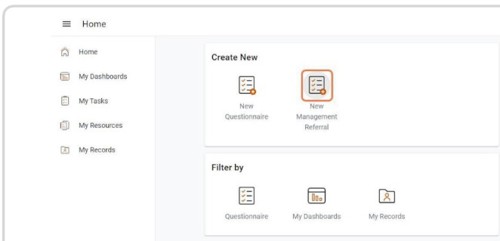
STEP 1: Click on New Management Referral
STEP 2: Complete Employee Details
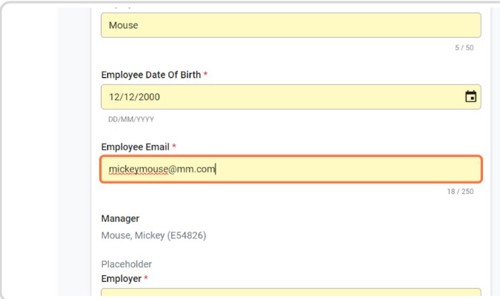
Complete employee details. The email address provided will be the email used to notify the employee of their OH appointment. Please provide the employee’s personal email address. If the employee does not have a personal email address, please state “not known” and the appointment will be released via post to the address you provide in box “full home address including postcode”.
STEP 3: All Yellow fields are mandatory
All yellow fields are mandatory.
STEP 4: Complete Management Referral
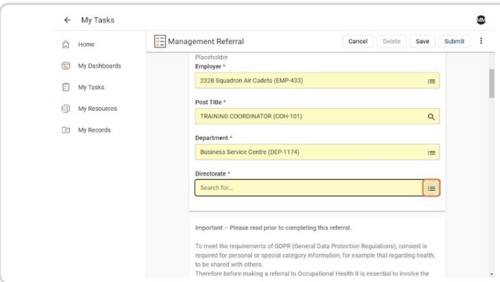
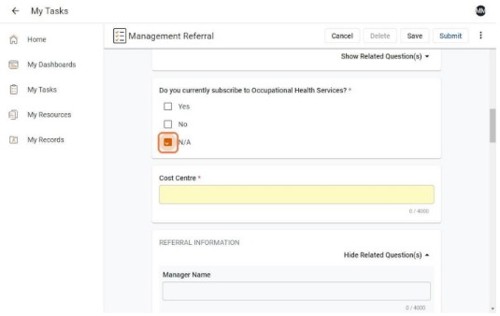
Scroll down and complete the management referral questionnaire. If you are referring from Gloucestershire County Council click “No” to subscribing question.
In order to get the most from your referral, please select the appropriate reason for referral, provide a brief background and indicate the specific relevant questions you wish to be addressed within the subsequent report. Free text questions can also be asked if appropriate. Additional questions cannot be asked once the referral is submitted.
STEP 5: Saving the Management Referral
If required you can save the referral for completion at a later date by clicking save not submit.
Occupational Health will not receive saved referrals – only submitted referrals.
To return to a saved referral, go to My Tasks, then click on the filters tab on the top right hand corner and untick assigned to me. Your incomplete referrals will then be available for editing and updating as required.

STEP 6: Submitting the Management Referral
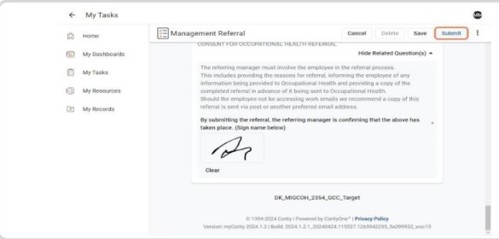
When fully completed click on submit. Once submitted referrals cannot be edited or changed.
To view the appointment date click on My Records.
Select the relevant Case/management Referral.
Scroll down to view the First Offered Date, First Attended Date etc.
To share your referral with your employee, you can convert your referral to a PDF, at any stage of this process.
Go to My Tasks, then click on the filters tab on the top right hand corner and untick assigned to me. Your incomplete/complete referrals will then be available.

Select the referral you wish to convert to a PDF/share with the employee. Click on the the 3 dots in the right hand corner.
Click on Print or Export.
Then select Print or Export to PDF.
To return to your myCority account click the X in the top right hand corner.
Other guidance on viewing Occupational Health reports, referrals and exporting to PDFs is available in the associated guide:
Remember:
Referring Managers will receive email notifications from the Cority system when the consent status of the Occupational Health report changes – for example when consent is provided by the employee or when consent is declined.
Reports are only accessible via the myCority system by the referring manager in line with GDPR. Should a referring manager feel the need to share an Occupational Health report/advice contained within the report, the referring manager must discuss this with the employee directly. Occupational Health cannot release copies of the report to other managers.
Employees also have access to their Occupational Health report via their own myCority account. Subsequently should there be a change in manager the employee can access their own myCority account and download a copy of the specific report should this be deemed helpful.