SAP and Concur using your own devices

As you may be aware, Gloucestershire County Council has upgraded their HR and payroll system called SAP.

One of the main benefits of this new system is that all staff can now self‑serve. This means you can:

  • Submit your own claims for hours worked and mileage
  • View your payslips online

The system is designed to be straightforward to use and there are online guidance and short videos to support you.

How to log in

To log into either SAP or Concur, you will need to use Multi-Factor Authentication, via an Authentication App on your mobile device. We have provided instructions on how to download this, if you do not already have one.

You will be logging in using your personal email to SAP, and a ‘ficticious’ email for Concur, made up of your personnel personnelnumber@gloucestershire.gov.uk.

You will also use a 6-digit number to access the system securely.

Logging onto SAP with a personal email using an Authenticator App

Logging onto SAP with a personal email using One Time Passcode

Logging onto SAP with a GCC email using an Authenticator App

Logging onto Concur for staff with personal emails

Common Issues with the Authenticator App

Links to the sites:

SAP Success Factors – for claims for hours (one-time payments)

Concur – for mileage claims

Submitting a One Time Payment Claim

For Registrars and CCROs

For Ushers

For those who need to use 'miscellaneous' claim pay code 3990 (e.g. music tutors, cycle instructors, adults team)

For those who use te claim pay code 3005/3715 (less than 5 years and more than 5 years service)

Click an option below to find out more and to view a helpsheet.

Important Note: If you have more than one job role (multiple employment) a separate Claim will now need to be added each month for the expenses for that Job role, guidance on how to do this can be found here: Adding separate Claims for Multiple Employment.

Please note: some claims are being submitted without valid Fuel for Mileage receipts. Please ensure you submit valid Fuel for Mileage to cover the VAT on your mileage expenses before submitting a claim.

Log in and set up Concur

Click through the options below to find out how to log in and set up Concur. Please note: initial set up must be be completed using a web browser on a PC / laptop only.

If you are using the mobile app it is important that you are using the correct server — please view our helpsheet for guidance.

FAQs:

You must use a desktop computer to log in and set up Concur for the first time. Initial set up cannot be completed on the app.

You will need to set a password the first time you log in to Concur.

  • If you are a One SAP user guidance on how to access the SAP Concur system from your Workzone can be found here: Accessing SAP Concur via One SAP Workzone.
  • Alternatively go to https://eu1.concursolutions.com
  • Enter your Concur login (usually your email) and select Next.
  • In the next screen choose the option SAP Concur Password then select Next (the IAS option on this screen is only used for subsequent logins after you have logged in for the first time).
  • In the next screen click the Forgot password link.
  • In the next screen enter your email and you will be sent instructions by email to reset your password.
  • Use the instructions on the email to reset your password in SAP Concur then login using the Return to Sign-in and SAP Concur Password option then add the new password.
  • In the next screen to set up two factor authentication use an authenticator app to scan the QR code that has appeared (we recommend using Microsoft Authenticator). Further guidance on setting up Concur on the Authenticator can be found here: How to set up SAP Concur 2FA after 18 October 2023. Link to doc
  • Once SAP Concur is registered with the Authenticator use the Authenticator to generate a 6 digit code.
  • Add the 6 digit code to the Authentication Code field and click Sign In. Note: the code will only last for around 30 seconds, if not added within this time the Authenticator will generate a new code.
  • You are now logged into SAP Concur.

For a step-by-step walkthrough on how to log into SAP Concur for the first time please watch the following video: Logging into SAP Concur for the first time.

You must use a desktop computer to log in and set up Concur for the first time. Initial set up cannot be completed on the app.

You will need to set a password the first time you log in to Concur.

  • If you are a One SAP user guidance on how to access the SAP Concur system from your Workzone can be found here: Accessing SAP Concur via One SAP Workzone.
  • Alternatively go to https://eu1.concursolutions.com
  • Enter your Concur login (usually your email) and select Next.
  • In the next screen choose the option SAP Concur Password then select Next (the IAS option on this screen is only used for subsequent logins after you have logged in for the first time).
  • In the next screen click the Forgot password link.
  • In the next screen enter your email and you will be sent instructions by email to reset your password.
  • Use the instructions on the email to reset your password in SAP Concur then login using the Return to Sign-in and SAP Concur Password option then add the new password.
  • In the next screen to set up two factor authentication use an authenticator app to scan the QR code that has appeared (we recommend using Microsoft Authenticator). Further guidance on setting up Concur on the Authenticator can be found here: How to set up SAP Concur 2FA after 18 October 2023. Link to doc
  • Once SAP Concur is registered with the Authenticator use the Authenticator to generate a 6 digit code.
  • Add the 6 digit code to the Authentication Code field and click Sign In. Note: the code will only last for around 30 seconds, if not added within this time the Authenticator will generate a new code.
  • You are now logged into SAP Concur.

For a step-by-step walkthrough on how to log into SAP Concur for the first time please watch the following video: Logging into SAP Concur for the first time.

To get started on Concur you need to set a Personal Car or Vehicle as required:

  • Under Profile Settings click Personal Car
  • Enter the Vehicle ID (registration number, write ‘Bicycle’ if the vehicle is a bike), Vehicle Type, Engine Size/Fuel Type (for a bike choose ‘Bicycle’ from the list) and press Save

For a step-by-step walkthrough on how to set a personal car please watch the following video:

To get started on Concur you need to set a Personal Car or Vehicle as required:

  • Under Profile Settings click Personal Car
  • Enter the Vehicle ID (registration number, write ‘Bicycle’ if the vehicle is a bike), Vehicle Type, Engine Size/Fuel Type (for a bike choose ‘Bicycle’ from the list) and press Save

For a step-by-step walkthrough on how to set a personal car please watch the following video:

  • Under Profile Settings click Company Car
  • Click New and enter the Vehicle ID, Engine Size, Fuel Type, Make and Model, and Registration Date and press Save

For a step-by-step walkthrough on how to set a company car please watch the following video:

  • Under Profile Settings click Company Car
  • Click New and enter the Vehicle ID, Engine Size, Fuel Type, Make and Model, and Registration Date and press Save

For a step-by-step walkthrough on how to set a company car please watch the following video:

  • Log in and go to Profile and click Expense Delegates
  • Select Add
  • Search for the person using their email address, employee ID or login ID. Once you’ve selected the person click Add
  • Next, using the tickboxes select all the tasks you want to allow your delegate to be able to perform
  • Click Save

New to SAP? View our Delegates helpsheet for more detailed guidance on setting up and acting as a delegate.

  • Log in and go to Profile and click Expense Delegates
  • Select Add
  • Search for the person using their email address, employee ID or login ID. Once you’ve selected the person click Add
  • Next, using the tickboxes select all the tasks you want to allow your delegate to be able to perform
  • Click Save

New to SAP? View our Delegates helpsheet for more detailed guidance on setting up and acting as a delegate.

Once you have logged in for the first time and set a password you can log in using IAS when using the City network.

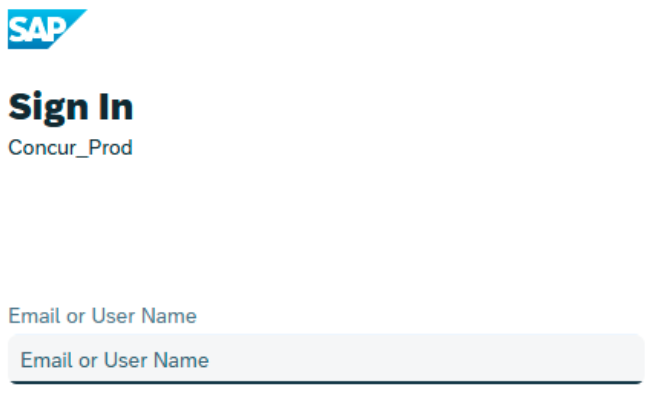
This means that you don't need to enter a password when using the desktop site (mobiles still require a username/password). Sometimes IAS will prompt you to add your email address again (see screenshot below), if so simply add the email address to the field that appears and click Continue.

 alt=

Once you have logged in for the first time and set a password you can log in using IAS when using the City network.

This means that you don't need to enter a password when using the desktop site (mobiles still require a username/password). Sometimes IAS will prompt you to add your email address again (see screenshot below), if so simply add the email address to the field that appears and click Continue.

 alt=